
The Hosts sheet
See every Host as a card with its connection, latency, mosh or SSH badge, and live CPU, memory and swap gauges, and manage them.
The Hosts sheet lists every machine Waycar connects to. Each Host has its own card with its name, address and connection, plus live gauges that show how busy the machine is. From here you add, open, turn off, copy and remove Hosts.
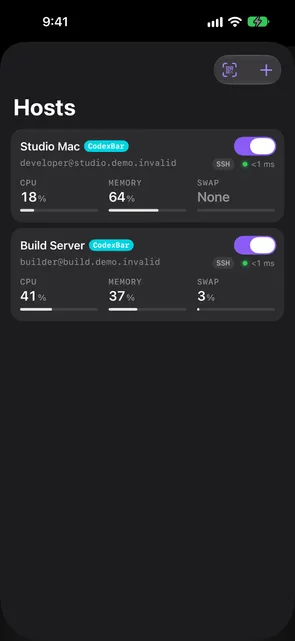
Open the Hosts sheet
Tap Hosts in the Console. The sheet has two buttons at the top: Scan to Pair to add a Host with a Pairing Code, and Add Host to enter one by hand. Tap a Host’s card to open its page.
What’s on a Host card?
- Name and switch. The name sits on top with an on/off switch beside it.
- Address and connection. Below the name you see the address (with
· session <name>for a named herdr session) and a status chip:- A latency such as
24 ms: connected. - Measuring…: connected, latency not measured yet.
- Connecting…: Waycar is making the first connection.
- Reconnecting… (orange): a live connection dropped and Waycar is retrying. See Network changes and reconnecting.
- Unavailable (red): the last attempt failed. It stays red while Waycar keeps trying. See Can’t connect to a Host.
- Paused: the connection is suspended while Waycar isn’t active.
- Disabled: the Host is turned off. It replaces the chip and badges.
- A latency such as
- Latency. The latest round trip of the Host connection in milliseconds, such as
24 ms, or<1 mson a fast local network. It measures the connection to the Host, not how fast the agent answers. The same figure appears in the status row under an agent’s terminal, and disappears while the Host isn’t connected. - MOSH or SSH badge. Shown while connected. Tells you whether the Host’s terminals run over mosh or plain SSH, and turns into a spinner while mosh is retested.
- tmux badge. A grey tmux badge marks a Host that runs only tmux. A Host with both herdr and tmux shows no badge.
- CPU, MEMORY and SWAP gauges. Shown for a connected Linux or macOS Host.
While the sheet is open, every connected Host’s latency and gauges refresh every 2 seconds. A gauge turns orange at 80% and red at 95%. A Host without swap shows None. A Host that isn’t connected shows no gauges.
Turn a Host off for a while
Turn off the switch on a Host’s card, or at the top of its Host page. Waycar stops connecting to it and hides it from the Console, and the card reads Disabled. Its settings, cached agents and Closed Sessions stay, and its notifications still arrive. With iCloud Sync on, the switch syncs to your other devices. Turn it back on to reconnect.
Duplicate a Host
Use this when you reach the same machine at another address, such as at home and over a VPN.
- Swipe left on the Host’s card, or touch and hold it.
- Tap Duplicate.
- The Duplicate Host form opens with the address, port, user, authentication (including any saved password), herdr session and Jump Host copied. A named Host’s name gets “Copy” added.
- Change what differs and tap Save. The new Host’s page opens.
Remove a Host
Swipe left on the card, or touch and hold it, and tap Delete. Confirm with Remove Host. This permanently deletes the Host’s settings and any saved password from the Keychain, and can’t be undone. If you only want a break from it, turn off its switch instead.
Good to know
- When a Host name resolves to several addresses and the first doesn’t answer, Waycar tries the next one a quarter second later instead of waiting.
- If a Host won’t connect, see Can’t connect to a Host.
Troubleshooting
- Hosts Unavailable. “The saved Host catalog could not be read. Its original data was preserved; reinstalling or adding a Host would risk losing it.” Scan to Pair and Add Host are off while this shows. Don’t reinstall Waycar or add Hosts. Contact support. Pairing can end with the same problem: “Pairing succeeded, but the Host could not be saved because the Host catalog on this device is unreadable”.
- Could Not Remove Host. “The Host could not be removed. Its saved credentials may still be in the Keychain.” Try removing it again.
Still stuck?
Waycar Support covers common problems and how to reach us by email.