
AI Usage with CodexBar
See how much of your Claude, Codex, and other AI plan limits is left, read by CodexBar on your Host and shown atop the Console.
AI Usage shows how much of each AI provider’s session and weekly limits you have left, so you know which account runs dry before your agent does. Waycar reads it from CodexBar on your Host, over SSH, and shows it in an AI USAGE row at the top of the Console.
Set it up
- Install CodexBar on your Host.
- Connect to the Host in Waycar. It looks for CodexBar on its own, including Linux Homebrew installs.
Hosts where CodexBar was found get a CodexBar badge in the Hosts list. The AI USAGE row then appears atop the Console’s agent list and scrolls away with it.
Read the AI USAGE row
The row shows the provider with the least left, session first and weekly second, such as “Claude 64% · 12%”. A number turns a warning color only when it runs low.
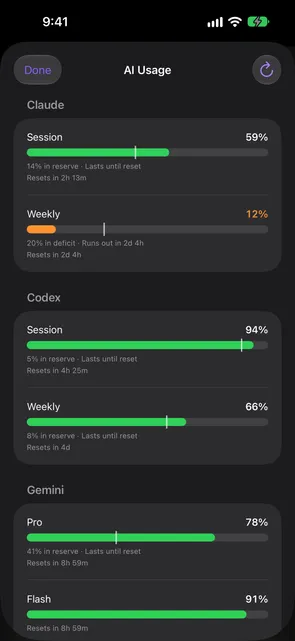
Tap the row to see every provider with its session and weekly gauges, pace, and when each resets. Tap a provider that couldn’t refresh to try again, or tap All details for the full sheet. Pull down in the sheet to refresh.
What is pace?
Under each gauge, CodexBar estimates whether the window lasts until it resets: “14% in reserve · Lasts until reset” when you use it slower than it runs, or “20% in deficit · Runs out in 2d 4h” when you’re on track to run out first.
Change how it’s shown
Open Settings › CodexBar:
- Provider: Most Urgent, or a provider you choose.
- Window: Session + Weekly, Session, Weekly, or Automatic, plus Show Reset Time.
- Show Usage As: Remaining or Used. Reset Times: Countdown or Clock Time.
Under Usage Details:
- Show Pace (on by default) adds the pace line under each gauge.
- Hide Account Labels (off by default) hides the account name next to each provider in the AI USAGE row and sheet.
- Refresh When Opened (off by default) asks a connected Host for fresh numbers when you expand AI Usage or open its details, unless it answered in the last 30 seconds.
When Window is anything but Session + Weekly, the row marks its number S (session) or W (weekly). A provider you chose that’s missing from the latest report falls back to Most Urgent. Colors always reflect what is left, even when you show usage as Used. These options stay on each device.
Choose which Hosts it reads from
Open a Host’s page from the Hosts sheet. In the AI Usage section:
- Show AI usage turns it on or off for that Host.
- Refresh sets how often it checks: 1, 2, 5, or 15 minutes.
- CodexBar Path points at CodexBar when auto-detection misses it. Leave it blank to auto-detect.
AI Usage is on for one Host by default. Another Host where CodexBar is found starts with it off, since each extra Host asks the same AI accounts again and can cause rate-limit errors. Each Console window reads from the Host it’s scoped to, or else the first connected Host with AI Usage on.
Troubleshooting
- “CodexBar not found” on the Host’s page: install CodexBar on the Host, or fill in CodexBar Path, then tap Check Again.
- “Claude can’t be read over SSH”: over SSH, CodexBar can’t open your Mac’s keychain. Tap Fix it for me…, then Open Agent. Waycar opens a new agent on that Host that explains the change and asks before touching your Mac. It sets up a small
codexbar servehelper, and a Terminal window opens on the Mac to load it. After that, AI Usage reads the helper first. - The row reads “No data” while its Host reconnects, and stays in place.
- Usage refreshes less often after errors. Waycar backs off to 15 minutes while reads fail.
Still stuck?
Waycar Support covers common problems and how to reach us by email.