
The Console
The Console lists the agents and shells on all your Hosts in one place, sorted so the ones that need you come first.
The Console is Waycar’s main screen. It shows every agent and plain shell on all your Hosts as a list of cards, sorted so that agents waiting on you sit at the top. Tap a card to open that agent’s live terminal.
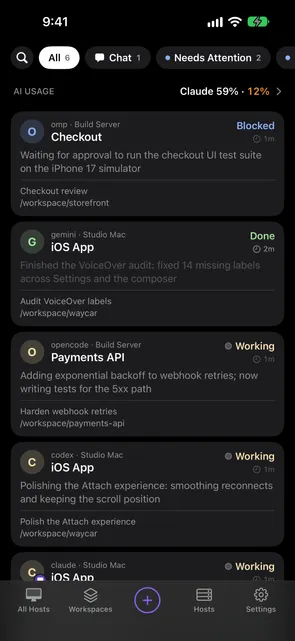
What’s on the screen?
From top to bottom:
- Search and Status pills. Search finds agents by folder or title. The pills (All, Chat, Needs Attention, Blocked, Done, Working) and the Closed chip narrow the list. See Filter, search, and pin.
- AI Usage row. When a Host has CodexBar, an AI USAGE row sits on top of the list and scrolls away with it. See AI Usage with CodexBar.
- Agent cards. Each card shows the agent’s kind, its status badge, and up to three rows of fields you can change per Host. See Agent card fields.
- Bottom bar. A Host menu, a Workspace menu, the New Agent button, Hosts, and Settings.
In what order are agents listed?
Agents from every Host and Workspace are grouped by status: Blocked, Done, Working, Idle, then the rest (Unknown and plain shells). Pinned agents always come first. Inside each status group, agents are ordered by Host, newest change first. See Agent status.
Narrow the list to one Host or Workspace
- Tap the Host menu in the bottom bar and pick a Host, or All Hosts.
- Tap the Workspace menu and pick a Workspace, or All Workspaces.
The menus change which agents you see, never their order.
What can I do with a card?
- Tap it to open the agent’s terminal.
- Swipe it to close the agent’s tab, with a few seconds to undo.
- Touch and hold it for Select, Pin, Mark as Unread, Move to Workspace…, Rename Tab…, and Close. See Rename, close, and mark agents.
What are the messages above my agents?
When a Host is connecting, reconnecting, waiting for you to trust its host key, or can’t connect, the Console shows a row for it above the agent cards. Tap a row with › to open that Host’s page and fix it. See What connection messages mean.
Why is the list empty?
| You see | Why | What to tap |
|---|---|---|
| No Agents Need Attention, No Chat Mode Agents, No Closed Sessions, or No Blocked Agents (or Done, Working) | The Status pill you picked matches nothing. | Show All |
| No Agents on your Host | The Host menu is set to a Host with no agents. | Show All Hosts |
| No Agents “Agents detected on your Hosts appear here.” | Your Hosts are connected but run no agents or shells. | Start one with New Agent. |
| No Agents “Your Hosts are disabled. Turn one on in Hosts.” | Every Host is turned off. | Hosts |
| No Results | Your search matches nothing. | Clear Search |
Open Settings
- Tap Settings in the bottom bar.
- Before you add a Host, tap the gear beside Add Your First Host.
- With a keyboard, press ⌘, or choose Settings… from the menu.
Tap Done to close it. See Settings at a glance.
Good to know
- Opening Waycar shows the agents each Host had last time at once. The live list replaces them as soon as the Host answers.
- On iPad the Console becomes a sidebar next to the open agent’s terminal. See Waycar on iPad.
- With no Host yet, the Console shows the setup steps instead of a list. See Install Waycar on your Host.
Still stuck?
Waycar Support covers common problems and how to reach us by email.