
Reach any machine on your home network from Waycar with Tailscale
Install Tailscale on your phone and on one device at home. That device becomes a subnet router, so Waycar can reach every machine on your network over SSH.
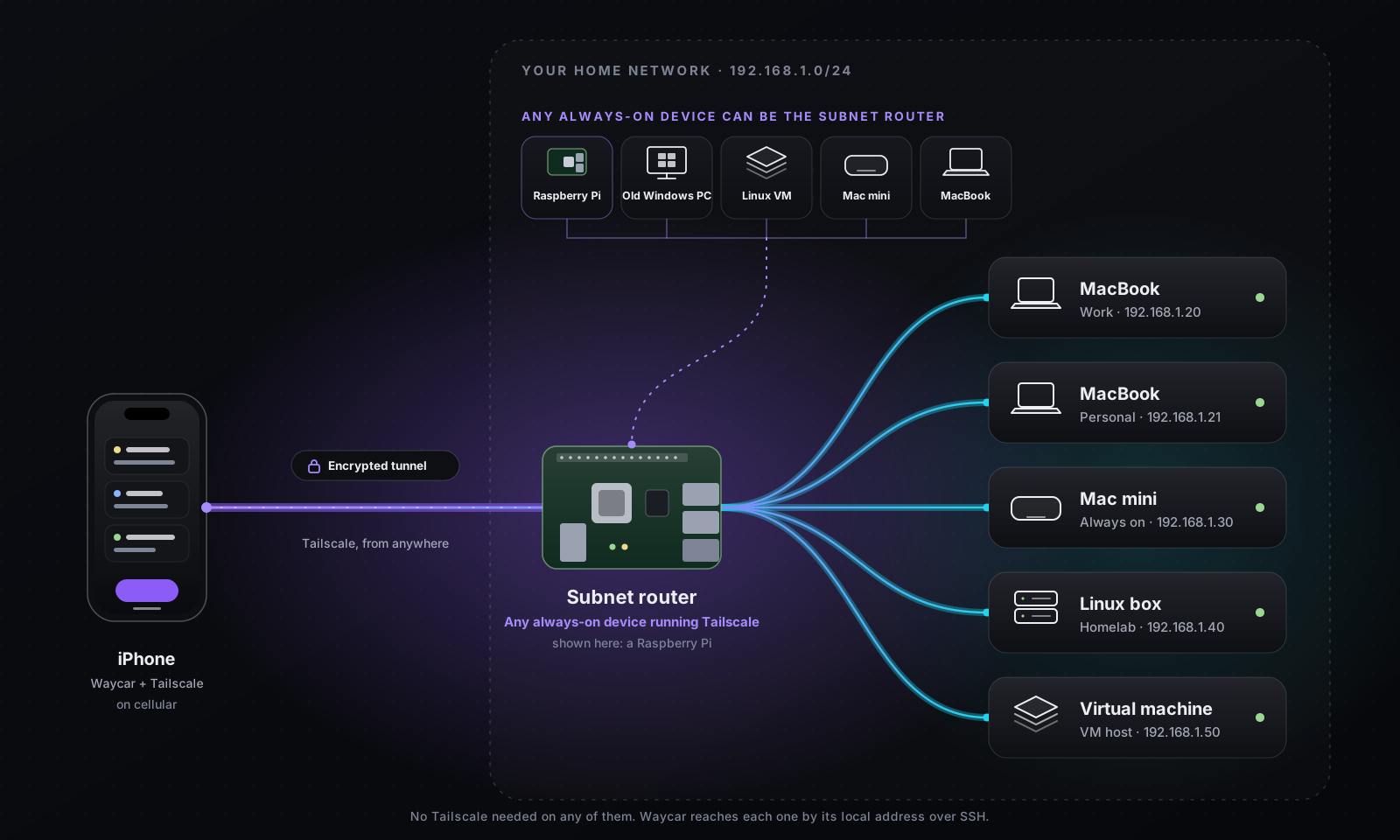
You want to steer Agents from your phone while you are away from your desk. The Host sits on your home or office network. Your phone does not.
The usual fix is to install a VPN client on every machine. You do not need to. Put Tailscale on your phone and on one device at home. That one device is a subnet router. It carries your phone’s traffic onto the local network, and every machine there becomes reachable. No Tailscale on the Hosts.
How traffic flows
Phone (Tailscale app)
   |  encrypted tunnel
   v
Subnet router (router or any always-on device)
   |  plain LAN
   v
Host (Mac or Linux box with SSH on)
Waycar talks SSH to the Host’s ordinary LAN address, for example 192.168.1.50. Tailscale delivers it.
What you need
- A Tailscale account (the free plan is enough).
- One always-on device on the home network to be the subnet router. Either:
- A router that runs Tailscale, or
- Any computer that stays on: a Raspberry Pi, an old Windows PC, a Linux VM, a Mac mini, a MacBook or a NAS.
- A Host with SSH enabled and Waycar’s Host Tools or herdr running. See Requirements.
Step 1: Install Tailscale on the phone
- Install Tailscale from the App Store.
- Sign in with the same account you will use at home.
- Leave it on. iOS accepts subnet routes automatically, so there is no setting to flip.
Step 2: Make one device a subnet router
Find your home subnet first. On most home networks it looks like 192.168.1.0/24 (addresses 192.168.1.1 to 192.168.1.254). Check your router’s admin page if you are not sure.
If your router supports Tailscale, follow its Tailscale setup and advertise that subnet there.
If it does not, pick another always-on device. On Linux, install Tailscale and sign in, then:
# 1. Allow the device to forward packets
echo 'net.ipv4.ip_forward = 1' | sudo tee -a /etc/sysctl.d/99-tailscale.conf
echo 'net.ipv6.conf.all.forwarding = 1' | sudo tee -a /etc/sysctl.d/99-tailscale.conf
sudo sysctl -p /etc/sysctl.d/99-tailscale.conf

# 2. Advertise your LAN
sudo tailscale set --advertise-routes=192.168.1.0/24
On macOS, install Tailscale and run this (the app does not put tailscale on your PATH, so use the full path):
/Applications/Tailscale.app/Contents/MacOS/Tailscale set --advertise-routes=192.168.1.0/24Windows can be a subnet router too, but it needs IP forwarding enabled before the route works, and that setup is longer. Follow the Windows section of Tailscale’s guide linked below. If you have a Linux or macOS device, it is the easier choice. Once forwarding is on, advertise the route:
tailscale set --advertise-routes=192.168.1.0/24A laptop works only while it stays plugged in, awake and at home.
Replace 192.168.1.0/24 with your own subnet. Tailscale’s subnet router guide covers every platform.
Step 3: Approve the route
Advertising is not enough. You must approve it.
- Open the Tailscale admin console.
- Select the subnet router. Its Subnets section shows the advertised route.
- Click Edit next to Subnets, tick the route, and Save.
- Still on that machine, disable key expiry (its menu › Disable key expiry). Otherwise the route dies when the key expires and you lose access while away.
Step 4: Give the Host a fixed address
Waycar will connect to the Host’s LAN address. If your router hands out a new one tomorrow, the saved Host breaks.
In your router’s DHCP settings, reserve a static address for the Host’s MAC address. Pick one inside your subnet, such as 192.168.1.50. A Mac on Wi-Fi may use a rotating private address, which breaks a MAC-based reservation. In the Mac’s Wi-Fi network details, set Private Wi-Fi Address to Fixed or Off for your home network.
Step 5: Turn on SSH on the Host
- Mac: System Settings › General › Sharing › turn on Remote Login.
- Linux: make sure
sshdis running.
For herdr Hosts, sshd must allow stream-local forwarding. Set AllowTcpForwarding to local or yes. See Can’t connect.
Step 6: Add the Host in Waycar
- On the phone, make sure Tailscale is connected.
- In Waycar, open the Hosts sheet and tap Add Host. With no Host yet, tap Add Manually under Scan to Pair.
- Address: the Host’s static LAN address,
192.168.1.50in our example. User: your login on the Host. - Pick a key or password, tap Save, and trust the Host’s key.
Details: Add a Host by hand and SSH keys and passwords.
Now switch the phone to cellular and open the Console. If the Host’s Agents appear, the path works.
Troubleshooting
- Times out on cellular, works on home Wi-Fi. The route is not approved (Step 3), or Tailscale is off on the phone.
- Works on cellular, fails on some other Wi-Fi. That network may use the same subnet as your home (
192.168.1.0/24is very common). Two networks with one subnet cannot be told apart. Move your home network to an uncommon range such as10.42.7.0/24and update the route. - Host not found after a few days. The static address reservation is missing, so the Host’s address changed.
- Subnet router offline. The route only exists while that device is on. Use something that stays powered.
- Route stops working after months. Device keys expire (180 days by default). Disable key expiry on the subnet router (Step 3).
- Still stuck. Can’t connect lists each failing step.
Security notes
- Only devices signed in to your tailnet can use the route. Tailscale’s access controls can limit which devices may reach which addresses.
- The Host still needs its own SSH login. Tailscale gets the phone onto the network. It does not log you in.
- A subnet router exposes the whole subnet to your tailnet. If that is too wide, advertise a single address instead, such as
192.168.1.50/32.