
How to reach your AI harness while you are away
Reach your coding agents and AI harness from anywhere, at home or away. Turn one device into a subnet router with Tailscale so your phone can reach every machine on your network.
Paste this into your coding agent. It sets up a Tailscale subnet router on this machine and ends with the Waycar install link for your phone.
Show the prompt
Set up this machine as a Tailscale subnet router so I can reach my other machines from my phone with Waycar. Waycar runs on my phone. Nothing here installs Waycar on this machine.

Work through the steps in order. Before you run any command that needs sudo, or that changes system files, network settings or firewall rules, show me the exact command and wait until I say yes. Never tell me the setup is done before I confirm it works from my phone. If a step does not cover something, ask me first.

1. Work out which operating system this machine runs (macOS, Linux or Windows) and tell me before you do anything.

2. Install Tailscale on this machine. Show me each command and wait for my yes first.
   - macOS: install the Tailscale app. Its command line tool lives at /Applications/Tailscale.app/Contents/MacOS/Tailscale. No sudo is needed.
   - Linux: install the tailscale package with the system package manager.
   - Windows: install the Tailscale app.

3. Sign in. Run tailscale up (on macOS, /Applications/Tailscale.app/Contents/MacOS/Tailscale up). It prints a login URL. Show me that URL, tell me to open it and sign in, and wait until I confirm I am signed in.

4. Find this machine's LAN subnet. On Linux run: ip -4 route show default. On macOS run: ipconfig getifaddr en0, or ifconfig. On Windows run: ipconfig. Work out the subnet from the local address, so 192.168.1.10 means 192.168.1.0/24. Show me the subnet you found and ask me to confirm that this machine should be the subnet router that shares my whole local network with my tailnet. Do not go on until I say yes. If I say no, stop and tell me what to do instead.

5. Only if I confirmed, turn on forwarding and advertise the route. Show me every command and wait for my yes before each one.
   - Linux: first check /etc/sysctl.d/99-tailscale.conf with grep for the two lines below. For each line that is missing, append it with: echo '<line>' | sudo tee -a /etc/sysctl.d/99-tailscale.conf (a rerun that appends a duplicate line is harmless). Then run: sudo sysctl -p /etc/sysctl.d/99-tailscale.conf
     net.ipv4.ip_forward = 1
     net.ipv6.conf.all.forwarding = 1
   - Windows: do not change IP forwarding yourself. Point me at the Windows section of https://tailscale.com/docs/features/subnet-routers and ask me to follow it first.
   - macOS: the Tailscale app needs no forwarding step. The how-to at https://waycar.dev/articles/reach-your-local-network-with-tailscale shows the exact commands for every system.
   Then advertise the subnet I confirmed. Show me the command first: tailscale set --advertise-routes=<subnet> (on macOS, /Applications/Tailscale.app/Contents/MacOS/Tailscale set --advertise-routes=<subnet>).

6. Tell me to install the Tailscale app on my phone (step 1 of the how-to at https://waycar.dev/articles/reach-your-local-network-with-tailscale) and sign in with the same tailnet account. Wait until I confirm the phone is on the tailnet.

7. Tell me to approve the route in the Tailscale admin console at https://login.tailscale.com/admin/machines: select this machine, edit its subnet routes, tick the advertised subnet and save. Tailscale skips this only when the tailnet's access controls approve routes automatically. Then tell me to turn off key expiry for this machine in the same place; Tailscale's default is 180 days, and an expired key takes the route down. Wait until I have done both.

8. Give me the Waycar install link for my phone: https://apps.apple.com/app/id6815881853?pt=102524811&ct=setup-prompt&mt=8. If qrencode is installed on this machine, also run qrencode -t ansiutf8 with that link so I can scan the code from my terminal. Offer to open the link in my browser. Do not install anything else on this machine.

9. Verify the route works. Run tailscale status --json (macOS: the full path) and look for the confirmed subnet under Self.AllowedIPs, which is what this machine advertises. Show me the JSON. Then the real test: tell me to turn OFF Wi-Fi on my phone (so it runs on cellular), open Waycar, and connect to a machine on my network by its LAN address. The machine you connect to needs SSH reachable; turn on SSH on that machine or ask me first. Wait until I confirm that worked.

When the route works from my phone, tell me what you set up and what still needs my attention.Reach your coding agents and AI harness from anywhere.
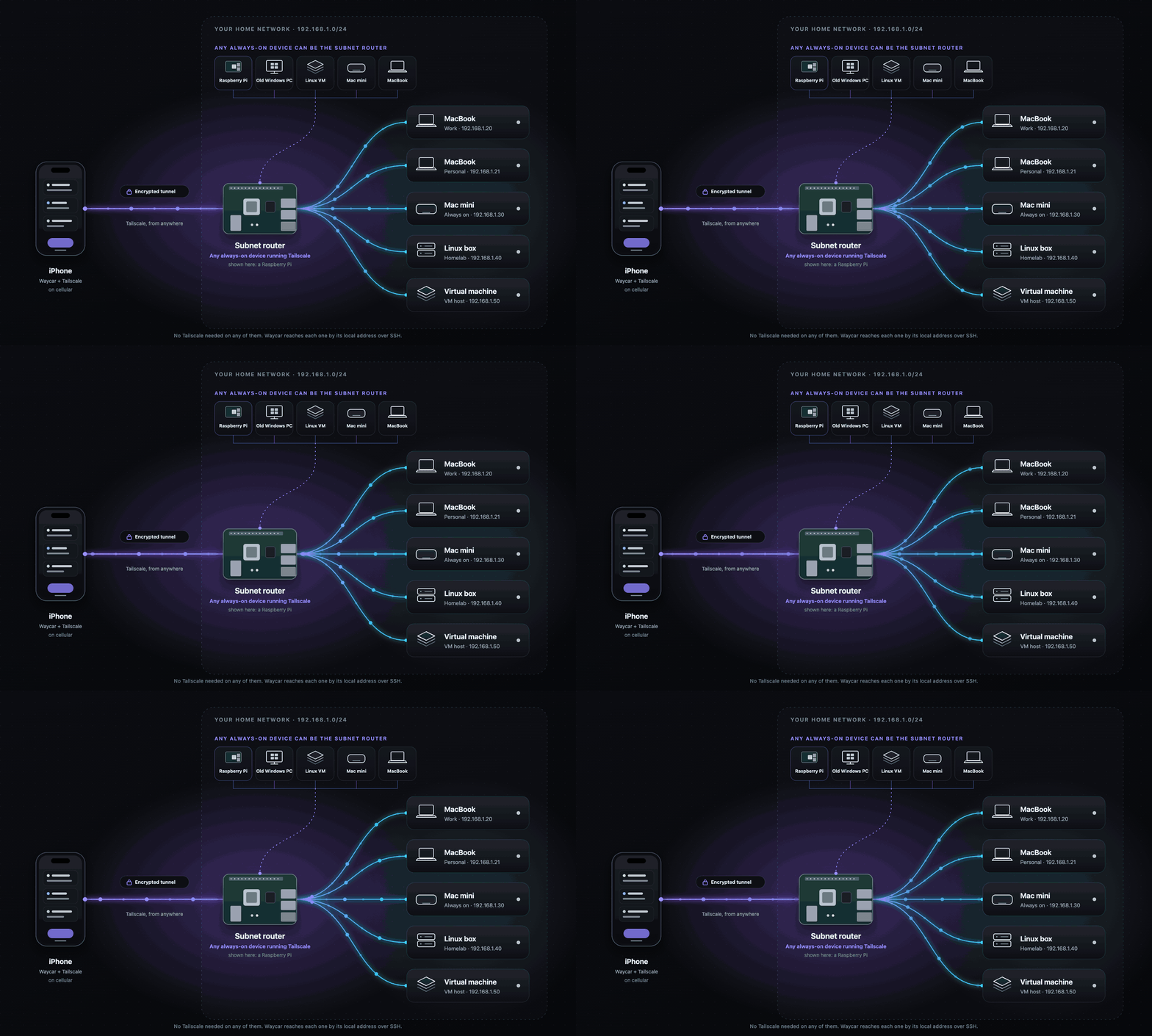
Your agents live on a machine at home or at the office, and your phone is not on that network. With Waycar on your phone and a subnet router at home, you can check on them from the couch, the train or the store.
Tailscale is the tool. It connects your phone to your home network, so your phone can talk to the machine running your agents.
The agents are not the hard part. The network is. Your phone is on cellular or some other Wi-Fi. The machine is on a private network, behind a router. Something has to connect the two.
Here are the common options, what each one needs, and what each one exposes. Then a short walk through the one I like best for a home setup.
What any option needs
Your phone’s SSH client must be able to open an SSH connection to the host. So the host needs SSH turned on, and a way to be reached from outside your network.
For mosh, which survives network changes, the host also needs mosh-server (see https://mosh.org), and UDP traffic must be able to reach it. Without mosh you still get SSH.
Option 1: same Wi-Fi only
Your phone and the host sit on the same network. Nothing else to set up.
- Needs: nothing extra. SSH on the host.
- Exposes: nothing new. The host is only visible to devices already on your network.
- Fits when: you only use your agents at home. It stops working the moment you leave.
Option 2: Tailscale on the host
Install Tailscale on your phone and on the host. They join the same private network, and your phone reaches the host by its Tailscale address from anywhere.
- Needs: a Tailscale account (the free plan is enough), and the Tailscale app on the phone and on each host.
- Exposes: the host is reachable by devices signed in to your tailnet. SSH is still the way in, and it still needs its own login.
- Fits when: you have one or two hosts and you are happy to install Tailscale on each.
The catch: every new machine needs another install.
Option 3: Tailscale subnet router
Put Tailscale on your phone and on one always-on device at home. That device is a subnet router. It carries your phone’s traffic onto your local network. Every machine there becomes reachable, and none of them needs Tailscale.
The router can be almost anything that stays on: a Raspberry Pi, an old Windows PC, a Linux VM, a Mac mini, a NAS, or a router that runs Tailscale. A laptop works only while it is plugged in, awake and at home.
- Needs: a Tailscale account, the app on your phone, and one always-on device acting as the router. Each host needs SSH and a fixed LAN address.
- Exposes: the whole subnet to your tailnet. Only devices signed in to your tailnet can use the route. If that is too wide, you can advertise a single address such as
192.168.1.50/32. - Fits when: you have several machines at home, or you do not want to install anything on them.
Option 4: SSH jump host
A jump host is a small server your phone can reach, and that can reach your machine. Your SSH client connects to the jump host first, then opens the connection to your host from there. With OpenSSH that is ssh -J (ProxyJump). Each machine’s host key is checked on its own.
A common setup is a reverse tunnel from your machine to the jump host, so the host’s address is something like 127.0.0.1 and the port is the tunnel’s port. If you set the host address to 127.0.0.1 like that, mosh cannot connect there, and your agents fall back to SSH.
- Needs: a server you control with a reachable SSH port. Both machines must accept your key (or the same password). The jump host must allow TCP forwarding.
- Exposes: the jump host’s SSH port is reachable from the internet. Your host is not, but it is reachable from the jump host.
- Mosh: no mosh, SSH only. mosh’s UDP does not go through a jump host. Your phone sends it straight to the host’s address, so that address must be reachable over UDP. If it is not, you get SSH.
- Fits when: you already run a server, or you can’t install a VPN on your network.
Option 5: port-forward SSH to the internet (don’t)
You can tell your router to send an outside port to the host’s SSH. It works, and it is the one I would skip.
- Needs: a router rule and a stable address or dynamic DNS.
- Exposes: your host’s SSH login to the whole internet. Anyone can try to log in.
- Fits when: not for this. Pick option 3 or 4 and keep that port closed.
If you do it anyway, use keys only and turn off password login. It is still more exposure than the other options.
Quick comparison
- Same Wi-Fi: needs nothing. Exposes nothing new. Fits home use only.
- Tailscale on the host: needs the app on each machine. Exposes the host to your tailnet. Fits one or two machines.
- Subnet router: needs one always-on device. Exposes the LAN to your tailnet. Fits many machines, nothing installed on them.
- Jump host: needs a server you run. Exposes that server’s SSH port. Fits when a VPN is not an option. No mosh, SSH only.
- Port-forward: needs a router rule. Exposes the host’s SSH to the internet. Fits nothing here.
Set up the subnet router
This is the short version. The full steps, with troubleshooting, are in https://waycar.dev/articles/reach-your-local-network-with-tailscale.
First, install Tailscale on your phone and sign in. iOS accepts subnet routes on its own.
Next, find your home subnet. On most home networks it looks like 192.168.1.0/24. Replace it below with yours.
On Linux, install Tailscale and sign in. Then allow forwarding and advertise your LAN:
echo 'net.ipv4.ip_forward = 1' | sudo tee -a /etc/sysctl.d/99-tailscale.conf
echo 'net.ipv6.conf.all.forwarding = 1' | sudo tee -a /etc/sysctl.d/99-tailscale.conf
sudo sysctl -p /etc/sysctl.d/99-tailscale.conf
sudo tailscale set --advertise-routes=192.168.1.0/24
On macOS, install the full Tailscale app. It does not put tailscale on your PATH, so use the full path. No sudo is needed:
/Applications/Tailscale.app/Contents/MacOS/Tailscale set --advertise-routes=192.168.1.0/24On Windows, IP forwarding must be on first, and that setup is longer. Follow the Windows section of Tailscale’s subnet router guide. A Linux or macOS device is the easier choice.
Then two steps people miss:
- Approve the route. Advertising is not enough. In the Tailscale admin console, select the router, edit its subnets, tick the route and save.
- Disable key expiry on the router. Device keys expire (180 days by default). Without this, the route dies and you lose access while you are away.
Last, give the host a fixed LAN address in your router’s DHCP settings and turn on SSH on the host. Then turn off Wi-Fi and SSH in from cellular, using that LAN address. If you get a prompt, it works.
The host still needs its own SSH login. Tailscale gets your phone onto the network. It does not sign you in.
Which one should you pick?
At home with a few machines: the subnet router. At home with one machine: Tailscale on the host. Already running a server: a jump host (no mosh, SSH only). Staying in the house: same Wi-Fi. Skip the port forward.
A note on Waycar
I use Waycar, an iPhone and iPad app for steering coding agents over SSH, on top of this setup. For a herdr host, SSH must allow stream-local forwarding (AllowTcpForwarding set to local or yes). A tmux host needs only plain SSH. You can try it at https://waycar.dev.